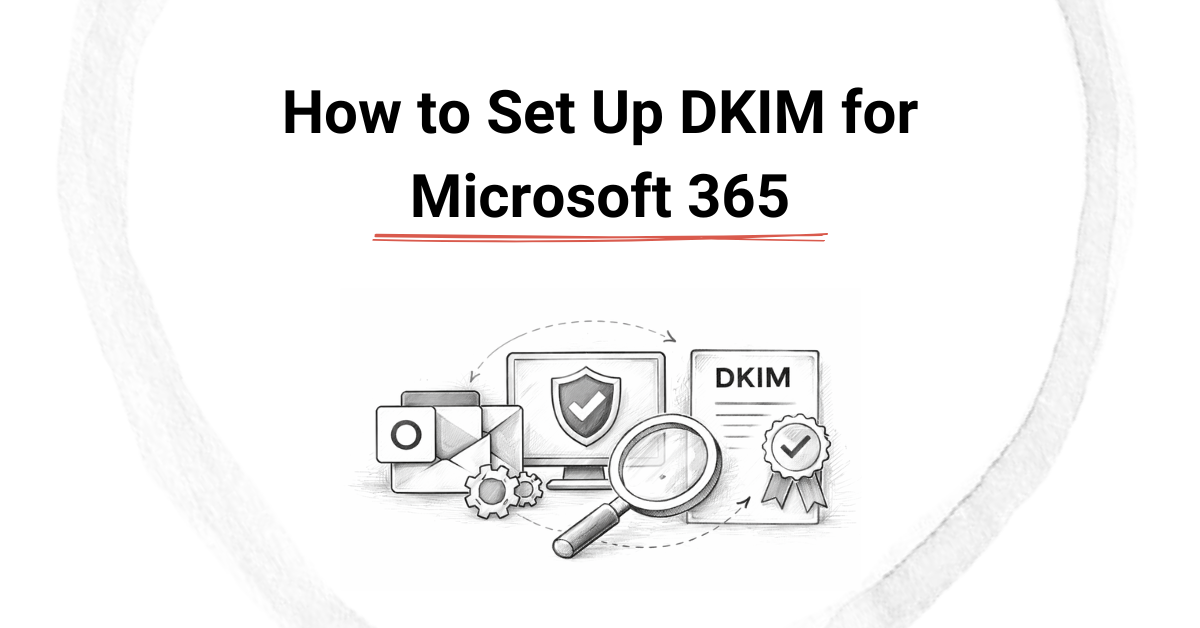
Email authentication expectations keep rising. Mailbox providers now assume DKIM is present, correctly configured, and actively signing mail.
If you send email through Microsoft 365, DKIM is not enabled by default. That surprises many teams. Without DKIM, your domain is easier to spoof, and your legitimate mail carries less trust.
What DKIM Does in Microsoft 365
DKIM signs outgoing messages using a private key held by Microsoft. Receiving servers fetch the public key from your DNS to verify authenticity.
The result is simple: your domain proves ownership of the message, and that message proves it was not altered. This trust feeds directly into inbox placement and DMARC alignment.
No DKIM means weaker signals. Weaker signals mean more filtering.
We’ve talked about SPF in the past. You can learn more about that here.
Phase 1: Access DKIM Settings in Microsoft 365
Microsoft handles DKIM through the Defender portal, not the main admin dashboard.
- Sign in to the Microsoft 365 Admin Centre.
- Open Microsoft Defender.
- Navigate to Email & collaboration, then Policies & rules.
- Select Threat policies, then DKIM.
- Choose the domain you want to configure.
At this point, DKIM will show as disabled, even for active domains.
That is expected.
Phase 2: Publish DKIM Records in DNS
Microsoft provides two CNAME records per domain.
These point your domain to Microsoft’s DKIM infrastructure.
You will see records similar to:
     selector1._domainkey.yourdomain.com
     selector2._domainkey.yourdomain.com
Each selector maps to a Microsoft-hosted target.
Add both CNAME records to your DNS provider. Do not modify the values. Copy and paste exactly as you see them.
DNS propagation usually completes within 30 to 60 minutes, but allow more time if your provider is slow.
Once the records resolve correctly, return to the DKIM page and enable signing.
Phase 3: Enable DKIM Signing
After DNS is live:
- Go back to the DKIM settings page.
- Toggle DKIM to Enabled for the domain.
- Confirm the status shows signing is active.
Microsoft starts signing immediately once enabled. No restart or mail flow change is required.
Phase 4: Validate DKIM and SPF
Validation closes the loop. Send a test email from an Office 365 mailbox to: https://aboutmy.email
Check the results carefully. You should see: DKIM: PASS and SPF: PASS
If DKIM fails, DNS is almost always the cause.
If SPF fails, the issue sits elsewhere in your authentication stack.
Common DKIM Pitfalls in Microsoft 365
These issues come up often.
- DKIM enabled before DNS propagation completes
- Missing one of the two selector records
- Publishing CNAMEs as TXT records
- Forgetting to enable DKIM on secondary domains
Microsoft does not rotate keys automatically for every tenant.
Periodic reviews matter.
DKIM in Microsoft 365 is straightforward once you know where to look.
The challenge is remembering to turn it on at all.
Strong authentication protects your brand, supports DMARC, and improves long-term delivery outcomes. That work pays off quietly, every day.